3 Practical Enhancements for Claude Code to Maximize Productivity

Hi 👋, I'm Dung Huynh Duc A passionate engineer from Singapore
🔭 I’m currently working in AirCarbon
👨💻 All of my projects are available at https://productsway.com
📝 I regularly write articles on https://productsway.com
📫 How to reach me dung@productsway.com
📹 I often publish my video every Sunday on IT Man Channel
Claude Code is a powerful CLI-based developer assistant. But with a few tweaks, you can make it even more efficient and integrated into your daily workflow. Here are three enhancements I use daily to boost my productivity:
1️⃣ Create a Shell Alias to Skip Permission Prompts
If you’re tired of manually confirming every action, add this alias to your shell config:
alias ccs "$HOME/.claude/local/claude --dangerously-skip-permissions"
It’s similar to yolo mode in Cursor, and it’s not as scary as it sounds.

2️⃣ Add Useful Hooks to Claude
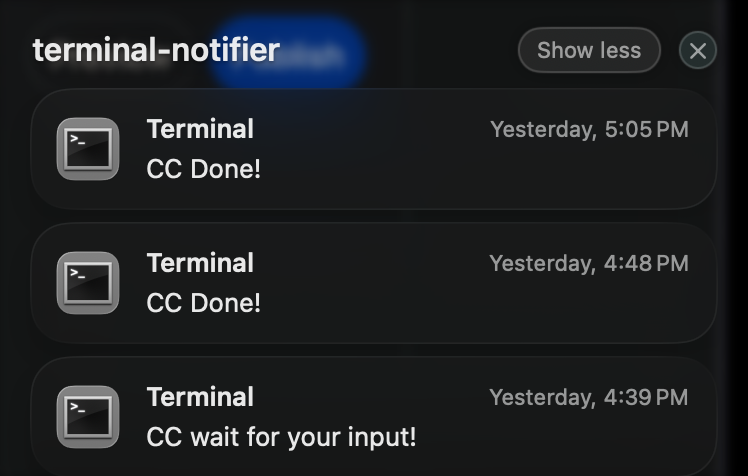
You can use ~/.claude/settings.json to customize Claude’s behavior — such as triggering macOS notifications when Claude needs your input or when it finishes running.
Here’s my configuration:
{
  "env": {
    "CLAUDE_BASH_MAINTAIN_PROJECT_WORKING_DIR": "1"
  },
  "hooks": {
    "Notification": [
      {
        "matcher": "",
        "hooks": [
          {
            "type": "command",
            "command": "osascript -e \"display notification \\\"$(jq -r .message)\\\" with title \\\"$(jq -r .title)\\\" sound name \\\"Glass\\\"\""
          }
        ]
      }
    ],
    "Stop": [
      {
        "matcher": "",
        "hooks": [
          {
            "type": "command",
            "command": "echo 'CC Done!' | terminal-notifier -sound default"
          }
        ]
      }
    ],
    "PostToolUse": [
      {
        "hooks": [
          {
            "command": "if [[ \"$( jq -r .tool_input.file_path )\" =~ \\.(ts|tsx|js|jsx)$ ]]; then biome check --write \"$( jq -r .tool_input.file_path )\"; fi",
            "type": "command"
          },
          {
            "command": "if [[ \"$( jq -r .tool_input.file_path )\" =~ \\.go$ ]]; then gofmt -w \"$( jq -r .tool_input.file_path )\"; fi",
            "type": "command"
          }
        ],
        "matcher": "Write|Edit|MultiEdit"
      }
    ]
  },
  "permissions": {
    "allow": [
      "Read(**)",
      "Edit(**)",
      "MultiEdit(**)",
      "Write(**)",
      "Glob(**)",
      "Grep(**)",
      "LS(**)",
      "WebSearch(**)",
      "TodoRead()",
      "TodoWrite(**)",
      "Task(**)",
      "Bash(git status*)",
      "Bash(git log*)",
      "Bash(git diff*)",
      "Bash(git show*)",
      "Bash(git blame*)",
      "Bash(git branch*)",
      "Bash(git remote -v*)",
      "Bash(git config --get*)",
      "Bash(gh pr*)",
      "Bash(ls*)",
      "Bash(cat *)",
      "Bash(less *)",
      "Bash(head*)",
      "Bash(tail*)",
      "Bash(grep*)",
      "Bash(find*)",
      "Bash(tree*)",
      "Bash(pwd*)",
      "Bash(wc*)",
      "Bash(diff *)",
      "Bash(sed -n*)",
      "Bash(awk*)",
      "Bash(cut*)",
      "Bash(sort*)",
      "Bash(uniq*)",
      "Bash(basename *)",
      "Bash(dirname *)",
      "Bash(realpath *)",
      "Bash(readlink *)",
      "Bash(curl*)",
      "Bash(jq*)",
      "Bash(yq eval*)",
      "Bash(python*)",
      "Bash(python3*)",
      "Bash(node*)",
      "Bash(npm list*)",
      "Bash(npm run*)",
      "Bash(npx*)",
      "Bash(black --check*)",
      "Bash(black --diff*)",
      "Bash(pylint*)",
      "Bash(flake8*)",
      "Bash(mypy*)",
      "Bash(eslint*)",
      "Bash(pytest*)",
      "Bash(make test*)",
      "Bash(npm test*)",
      "Bash(make -n*)",
      "Bash(man *)",
      "Bash(pydoc*)",
      "Bash(which *)",
      "Bash(type *)",
      "Bash(echo *)",
      "Bash(printf *)",
      "Bash(test *)",
      "Bash(true*)",
      "Bash(false*)",
      "Bash(* | grep*)",
      "Bash(* | jq*)",
      "Bash(* | head*)",
      "Bash(* | tail*)",
      "Bash(* | wc*)",
      "Bash(* | sort*)",
      "Bash(* | uniq*)"
    ],
    "deny": []
  },
  "statusLine": {
    "type": "command",
    "command": "bun x ccusage statusline",
    "padding": 0
  }
}
🖼️ Example output on macOS with terminal-notifier:
3️⃣ Monitor usage in real-time
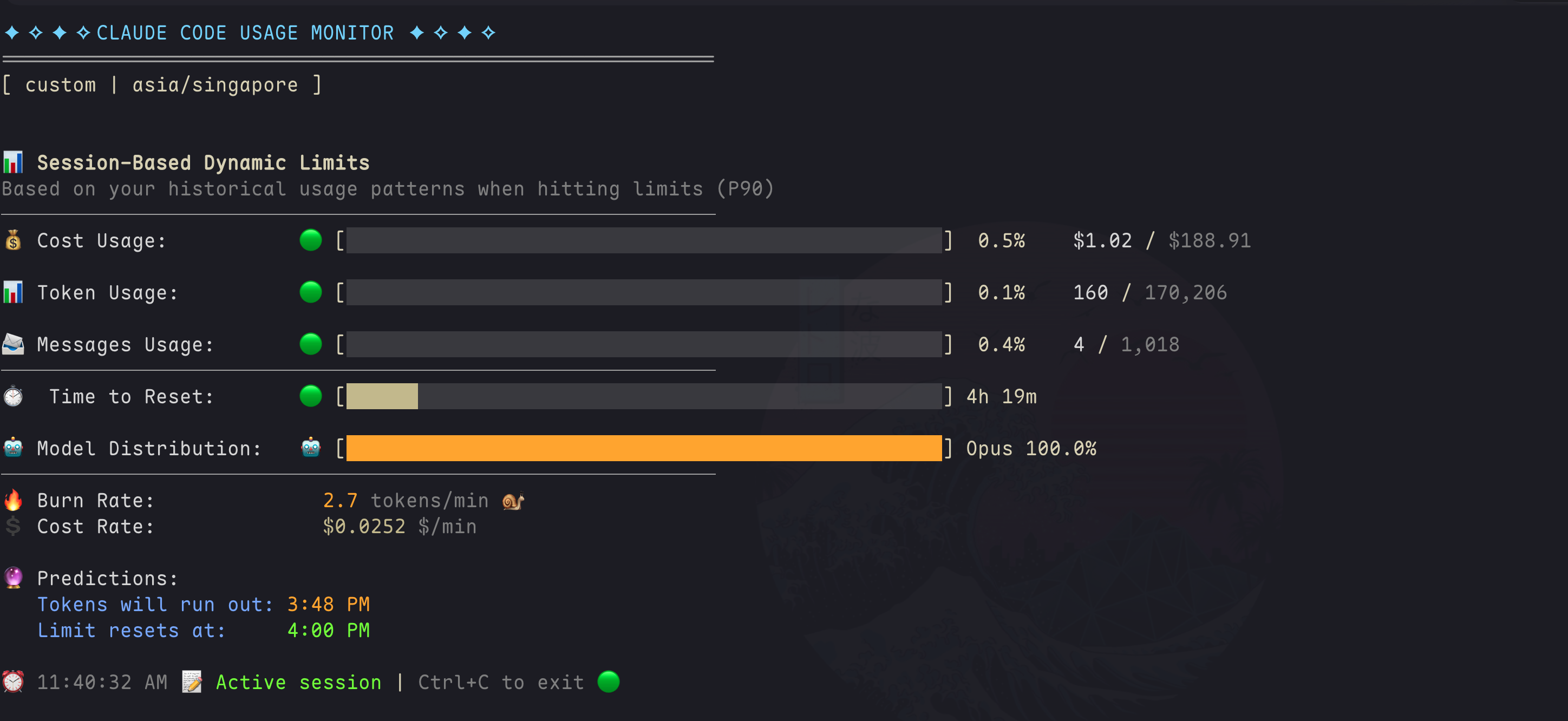
Use ccm to check token usage and cost while you work.
# Install directly from PyPI with uv (easiest)
uv tool install claude-monitor

# Run from anywhere
claude-monitor  # or cmonitor, ccmonitor for short
📊 Here’s what it looks like in my terminal:
Save time, stay in flow. 💡
#Claude #AItools #DeveloperProductivity